

If you received a password reset email from Amazon that you didn’t request, it usually means one of three things:
1 Someone tried to log into your account
2 Someone entered your email by mistake
3 It’s a phishing email pretending to be Amazon
Most of the time, this is a warning sign, not proof your account was hacked. But you should act quickly.
Here’s exactly what to do.
Table of Contents
- Step 1: Don’t Click the Link (Yet)
- Step 2: Go Directly to Amazon
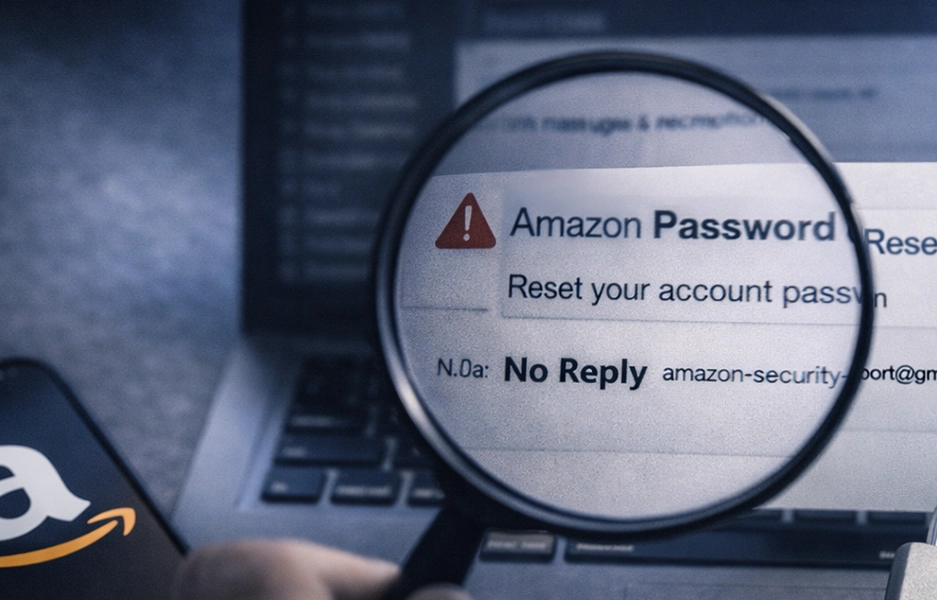
- Step 3: Check the Sender Address
- Step 4: Ask Yourself — Did Someone Try to Log In?
- Step 5: Change Your Password (Safest Move)
- Step 6: Enable Two-Step Verification (2FA)
- Step 7: Secure Your Email Account
- When It’s More Serious
- If You Clicked the Reset Lin
- Real vs Fake Reset Email — Quick Clues
- Good News
- Final Action Checklist
Step 1: Don’t Click the Link (Yet)
Before clicking anything inside the email:
Pause.
Phishing emails often look identical to real Amazon emails and try to trick you into entering your password on a fake site.
If the message mentions suspicious activity or urgent account action, compare it with this guide on Amazon unusual activity email: real or fake.
Step 2: Go Directly to Amazon
Open a new browser window and manually type:
amazon.com (or your local Amazon site)
Then:
- Log in normally
- Check for any security alerts inside your account
If there are no alerts and everything looks normal, the email may be fake or someone mistyped your email.
Go to Amazon’s official sign-in page: https://www.amazon.com/ap/signin
Step 3: Check the Sender Address
Legitimate Amazon emails usually come from domains like:
- @amazon.com
- @amazon.co.uk
- @amazon.ca
Be cautious if you see:
- Misspelled domains (amaz0n, amazonn, amazon-security-support)
- Gmail or Outlook addresses
- Long random domain names
Even if the sender looks real, don’t rely on that alone — addresses can be spoofed.
Step 4: Ask Yourself — Did Someone Try to Log In?
Common scenarios:
- You recently traveled
- You used a new device
- You mistyped your own password
- You use the same password on multiple websites
If your password was exposed in another data breach, hackers often test it automatically on Amazon.
This is extremely common.
If this reset email came along with unexpected login codes, also see Amazon OTP I didn’t request.
Step 5: Change Your Password (Safest Move)
Even if the reset email was fake, changing your password gives you peace of mind.
Go to:
Account → Login & Security → Edit Password
Create a password that:
✔ Is 12–16+ characters
✔ Is unique to Amazon
✔ Is not used anywhere else
If you reuse passwords, change those accounts too.
If your password no longer works, the issue may be bigger than a simple reset request. In that case, review Amazon account hacked and Amazon says my account is locked.
Step 6: Enable Two-Step Verification (2FA)
This is the single most important protection.
Turn on Two-Step Verification under Login & Security.
That way, even if someone has your password, they cannot log in without your verification code.
Step 7: Secure Your Email Account
If someone requested an Amazon password reset, they may also be targeting your email.
Change your email password and:
- Enable 2FA on email
- Remove suspicious forwarding rules
- Check recovery phone numbers
If your email gets compromised, attackers can reset almost everything.
If you lose access to the account email itself, read someone changed my Amazon email.
When It’s More Serious
You should act urgently if:
- You receive multiple reset emails in a short time
- You receive OTP codes you didn’t request
- You see login alerts from unknown locations
- Your password no longer works
In that case:
1. Change Amazon password immediately
2. Secure your email
3. Remove unknown devices
4. Review orders
5. Contact Amazon support
If fraudulent purchases appear too, also review someone ordered from my Amazon account and Amazon unauthorized purchases.
If You Clicked the Reset Link
If you clicked but did not enter information:
You’re likely fine.
If you entered your password on a suspicious page:
Change it immediately — both Amazon and any site where you reused it.
Real vs Fake Reset Email — Quick Clues
| Feature | Likely Real | Likely Fake |
|---|---|---|
| Account alert visible after logging in directly | ✔ | ❌ |
| Urgent threats (“Act Now or Account Deleted”) | ❌ | ✔ |
| Requests password in email | ❌ | ✔ |
| Strange link domain | ❌ | ✔ |
| No unusual activity inside account | ❓ | Likely fake |
You can also review Amazon’s official account help page here: https://www.amazon.com/gp/help/customer/display.html?nodeId=GSD587LKW72HKU2V
Good News
If you only received a password reset email and nothing changed:
✔ Your account is probably still secure
✔ The attacker likely failed
✔ This was an attempted login, not a breach
But treat it as a warning sign.
Final Action Checklist
If you get an Amazon password reset you didn’t request:
1 Log in directly (not through email link)
2 Change password
3 Enable 2FA
4 Secure email
5 Monitor account activity
Most of the time, this is an attempted access — not a successful hack.
If problems escalate after that, you may also want to review Amazon account on hold suspicious activity or whether Amazon may close your account.
Take control of your marketplace presence with fast, effective brand protection strategies.
Every day, unauthorized sellers and MAP violations can erode your pricing, reputation, and revenue. Don’t wait for problems to escalate, start enforcing your policies and reclaim your market authority with our proven tools and expert support.

 Brand Alignment